Docs · Account
Build a Creation together with other people
Every Creation has a Circle: the people you invite to build it with you, live. They reach that one Creation and nothing else in your workspace, and publishing, spending and domains stay your decision. Brainstorm on the Board, and see who did what in Activity.
- 01
Open the Circle and invite someone
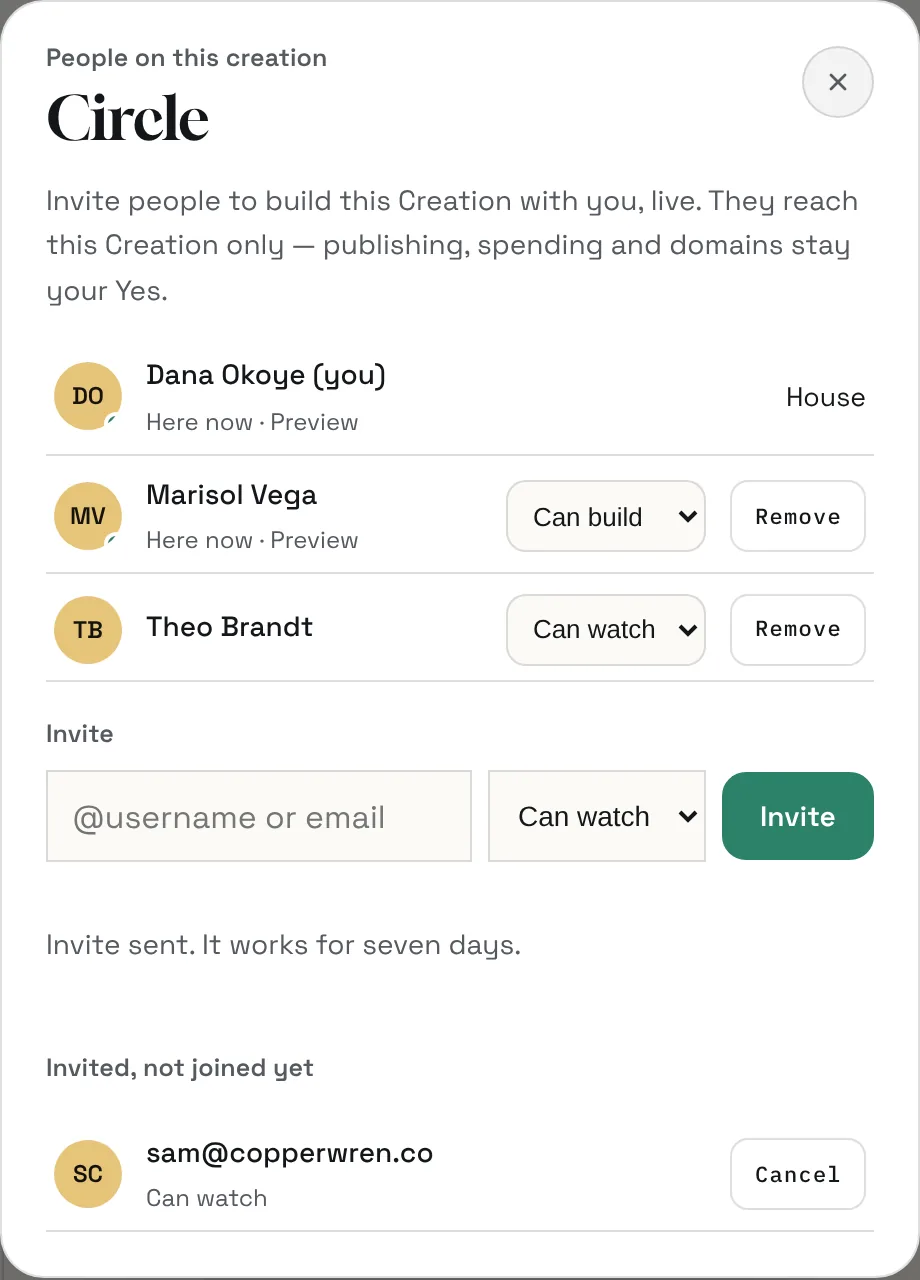
Open the Creation and press Circle above the chat. Type an @username or an email address, choose Can build or Can watch, and press Invite. They get an invite that’s for them only and works for seven days. Until they join, they’re listed under Invited, not joined yet, where you can cancel it.
- Can build: say what to build, and everyone in the Circle sees it happen
- Can watch: see it take shape and talk it through with Creai, without changing it
- Change what someone can do, or remove them, from the same list. A Circle holds up to 50 people.
- 02
Know what guests can and can’t do
People in a Circle see the Creation’s preview, its chat and its Board. Who said what is marked in the chat. They don’t see your other Creations, your Review list, domains, credits, code, history, videos, routines or Activity, and they can’t publish, spend or approve anything. Work a guest asks for is paid from your workspace’s credits, the same as your own.

- 03
Brainstorm on the Board
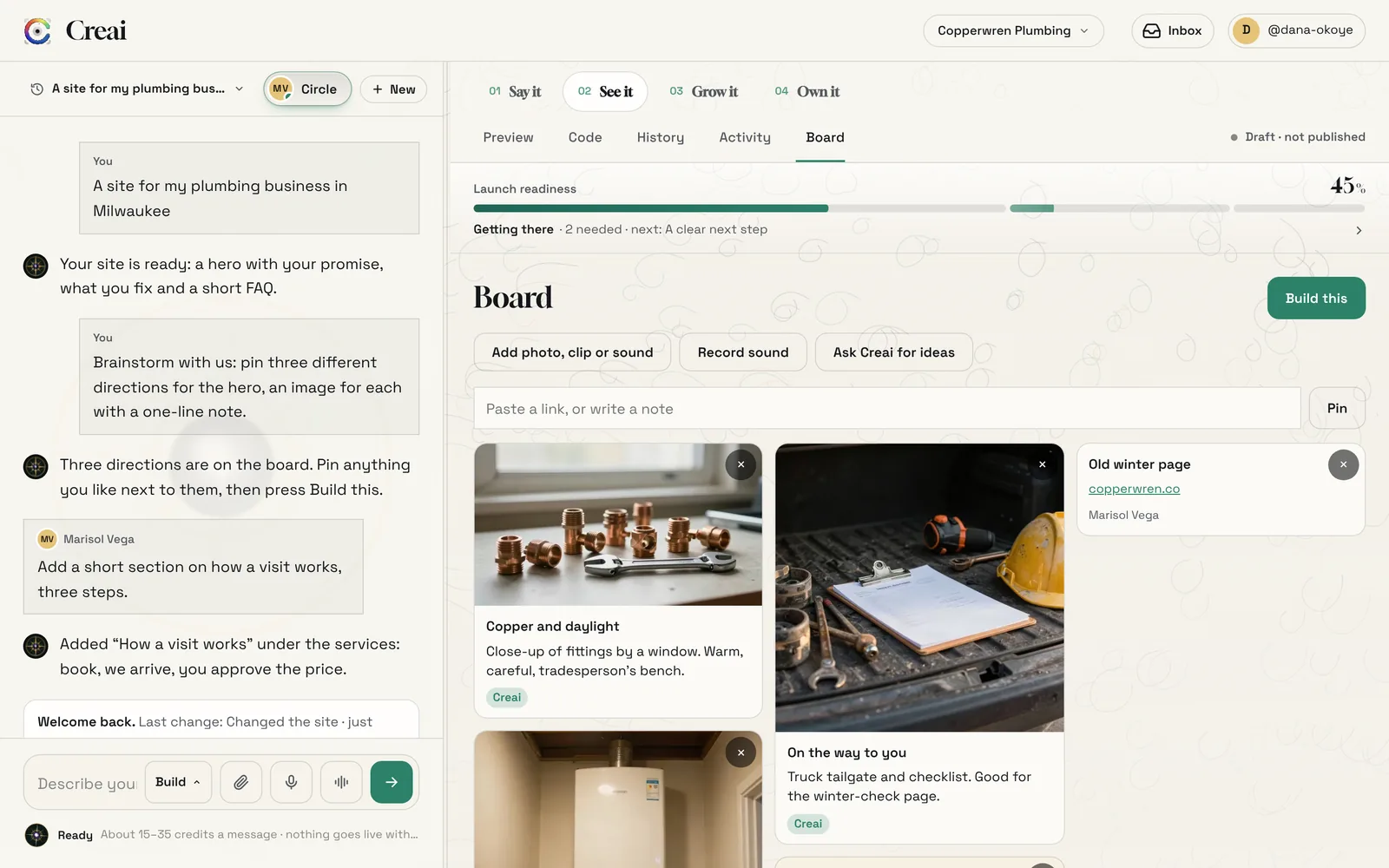
Open See it, then Board. Anyone on the Creation can pin photos, clips, sounds, PDFs, links and notes, and everyone sees each pin land. Press Ask Creai for ideas and Creai pins a few directions of its own, each with a picture and a note. When the board says what you want, press Build this and Creai builds from it.
- Creai’s pins are marked Creai, and everyone else’s carry their name
- You can remove your own pins; the workspace that owns the Creation can remove any
- 04
See everything in Activity
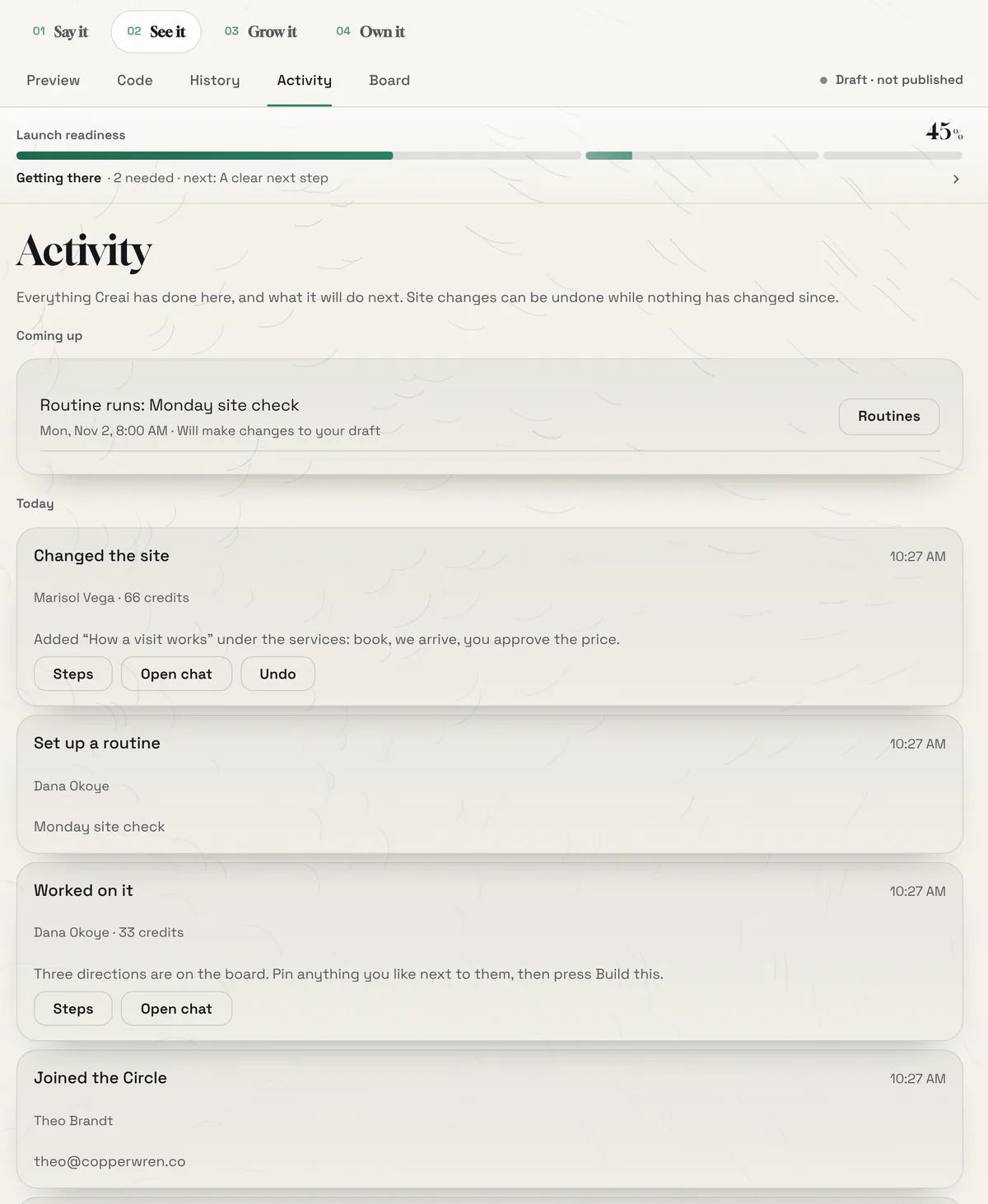
Open See it, then Activity. It lists everything Creai did in this Creation, who asked for it and what it cost, alongside publishing, routines and Circle changes. Coming up shows what happens next: scheduled posts, changes waiting for your OK and the next run of each routine.
- Steps shows what Creai did, and Open chat takes you to the conversation it happened in
- Undo puts a site change back while nothing has changed since
- 05
Check who’s here as a guest
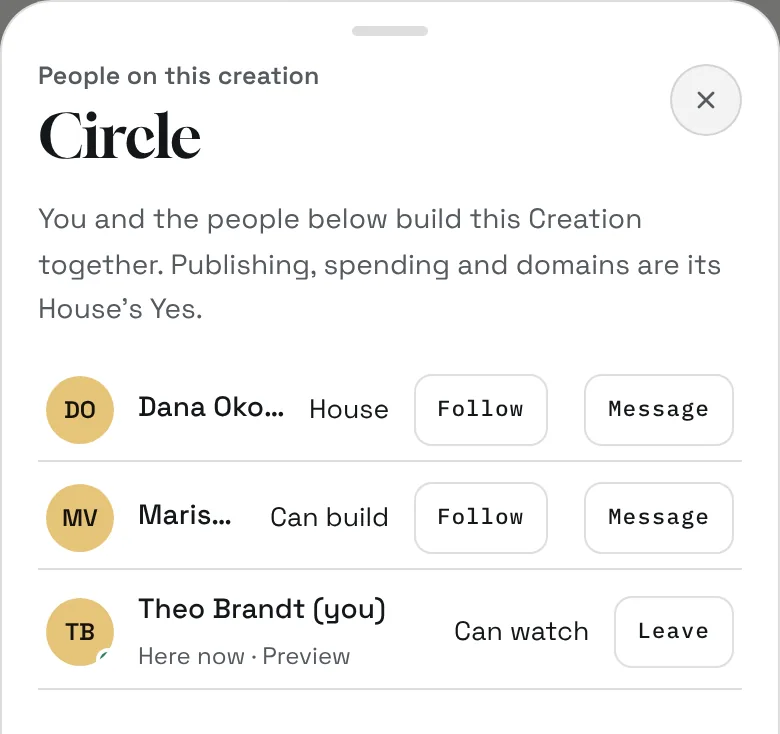
Guests open the Circle too. It shows whose Creation it is, what each person can do and who is here right now. From there they can follow someone, send a private message, or leave the Circle.
Good to know
- Message in the Circle opens a private conversation in your Inbox. Messages are encrypted in the browser, end to end.
- Someone who joins by email signs in with that address. An invite sent to one address can’t be used by another.
- Only your workspace shapes a Circle. Guests can see who else is in it, but can’t invite or remove anyone.
What it doesn’t do yet
- Inviting people to your whole workspace isn’t in the app yet. To work with someone today, invite them to a Creation’s Circle.
- Guests can’t attach files in the chat of a shared Creation yet. They can still pin photos, links and notes to the Board.
- A Creation that edits a connected WordPress or Webflow site can only be changed by its own workspace.
Questions
Can a guest publish or spend my credits without me?
They can’t publish, buy a domain or approve anything. Building they ask for is paid from your workspace’s credits, so invite people as Can build only when you want them building, and set a monthly limit under Credits.
What are workspace roles?
A workspace has four roles. Owners can do everything, including billing. Admins can build, approve and manage people. Members can build and approve. Viewers can only look. Every workspace starts with you as its owner.
Can I take someone out of a Circle?
Yes. Open the Circle and press Remove next to them. They lose access to that Creation straight away.
Related guides
Updated 2026-10-31.