Docs · Build
Build a website by describing your business
You describe the business; Creai plans the site, builds it and checks it. From then on you change it in plain words, point at the exact part you mean, try a completely different design when you want one, and put back any version you published before.
- 01
Start a new site and describe the business
Press New above the chat and choose New site, or describe your business on the start screen. Say what you do, who it’s for and where, plus anything a visitor needs: what you offer, prices, hours, how to book. Creai answers with a plan; press Build this plan when it looks right, or Change something first.
- 02
Watch it build
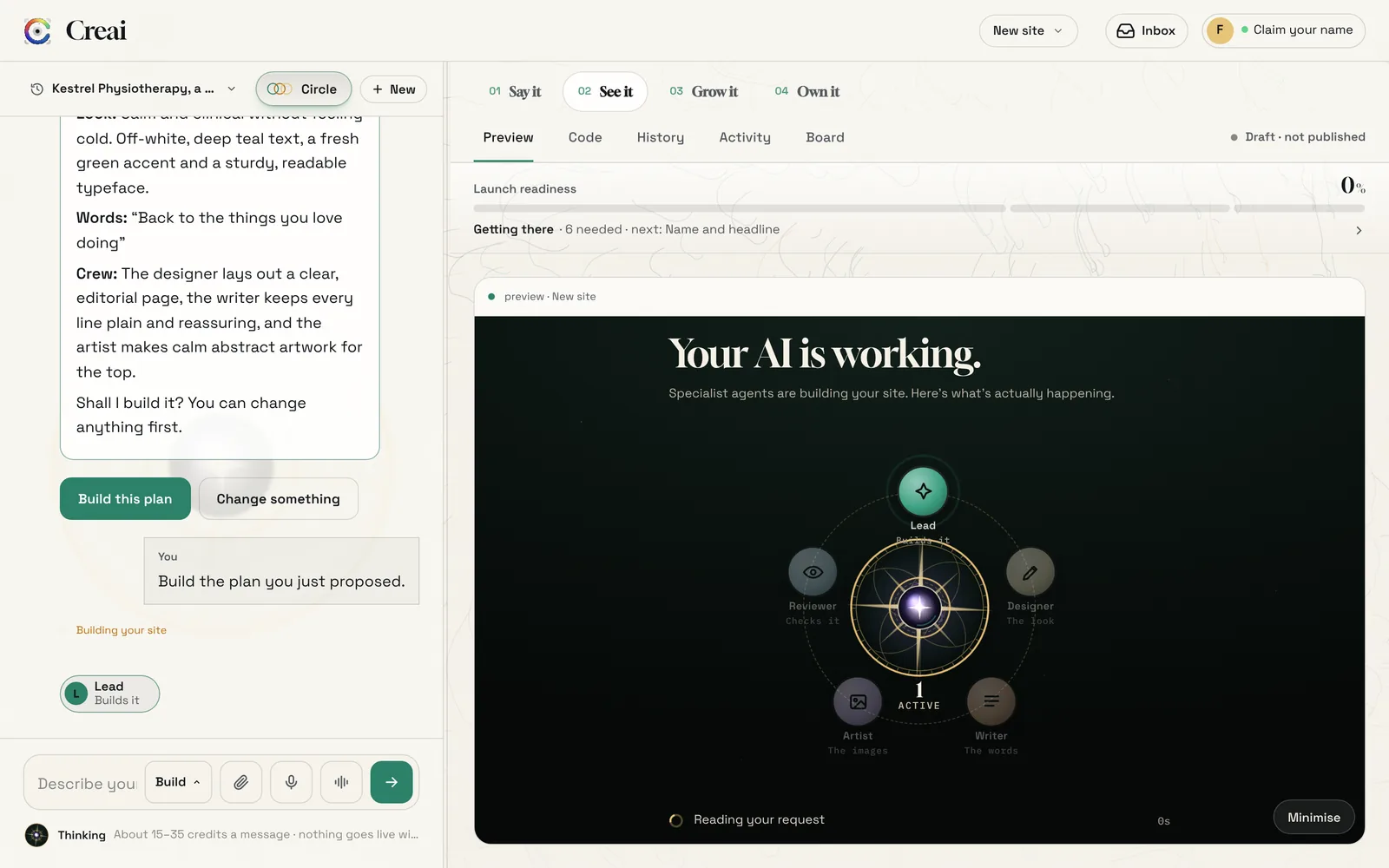
While it builds, the preview shows the crew at work: the Lead building, the Designer on the look, the Writer on the words, the Artist on images and the Reviewer checking. When it’s ready, a card offers See it, Share and Go live.
- 03
Change things by talking
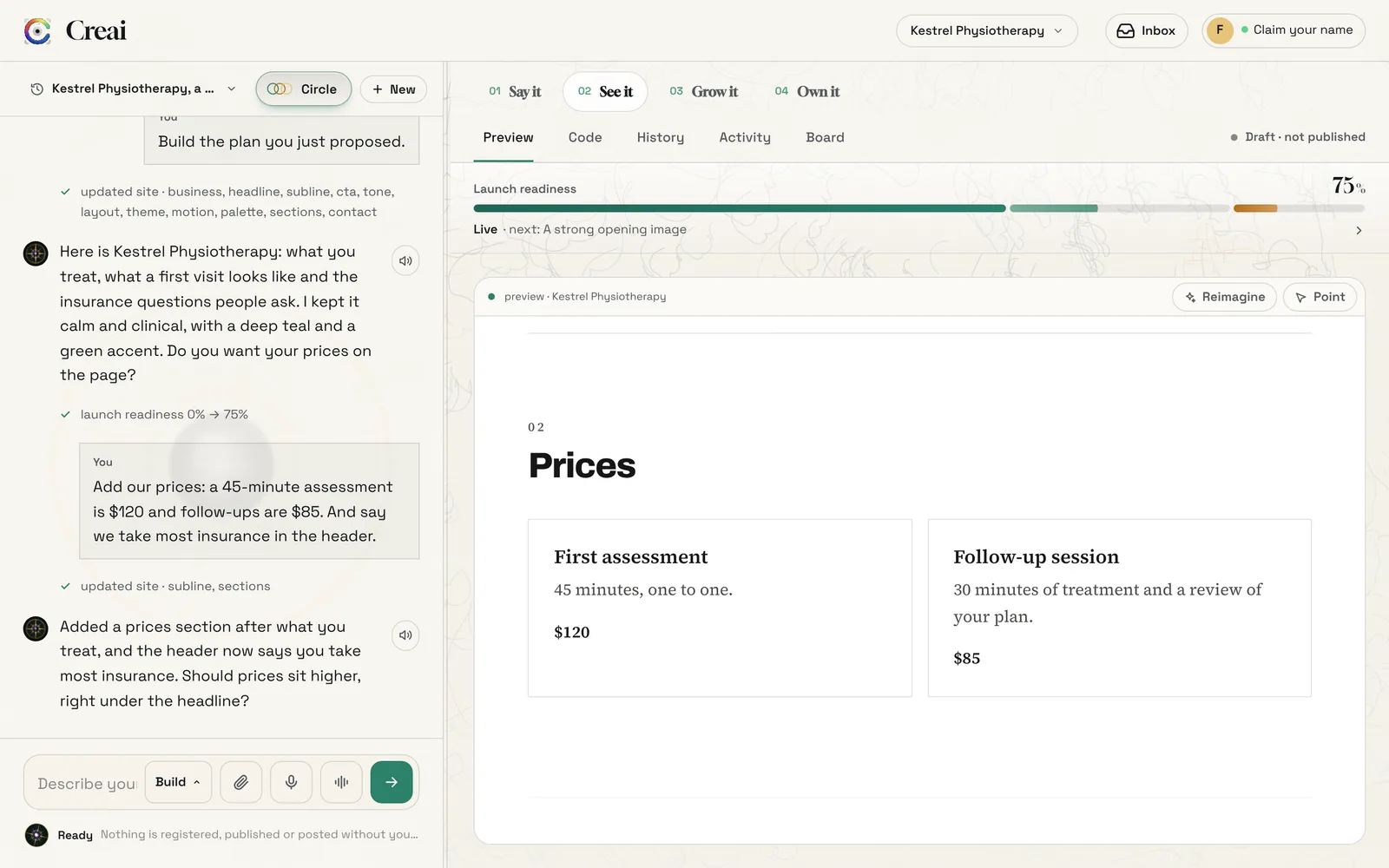
Ask for what you want in plain words: add a section, reword the headline, show your prices, change the colours. The chat says what was updated, and the preview redraws as each change lands, so the page stays in view while you work.
- Say why if it helps: “make it calmer, our patients are often in pain” gets a better result than “change the colours”.
- Plan mode proposes the steps before changing anything; Chat mode gives advice and changes nothing.
- 04
Point at the part you mean
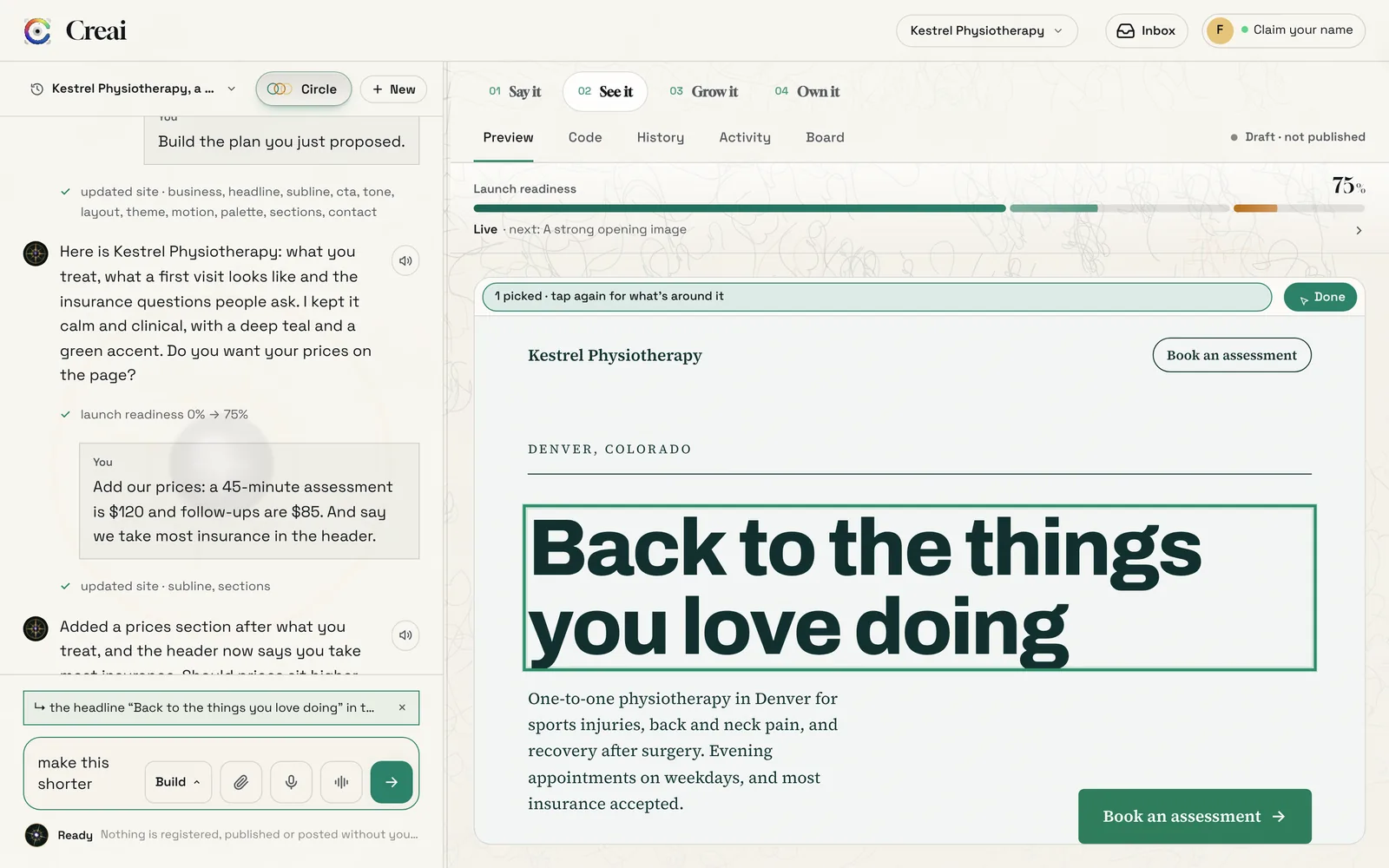
Press Point at the top of the preview, then click what you want changed: a headline, a paragraph, a price, a button, a photo or a whole section. Each pick stays outlined and appears above the message box in words. Type what to change and send. Press Done to stop pointing.
- Pick several things before you send, and they all go with one message.
- Click a pick again to take what’s around it instead, such as the card a price sits in, then its section.
- 05
Try a new look, and go back if you prefer the old one
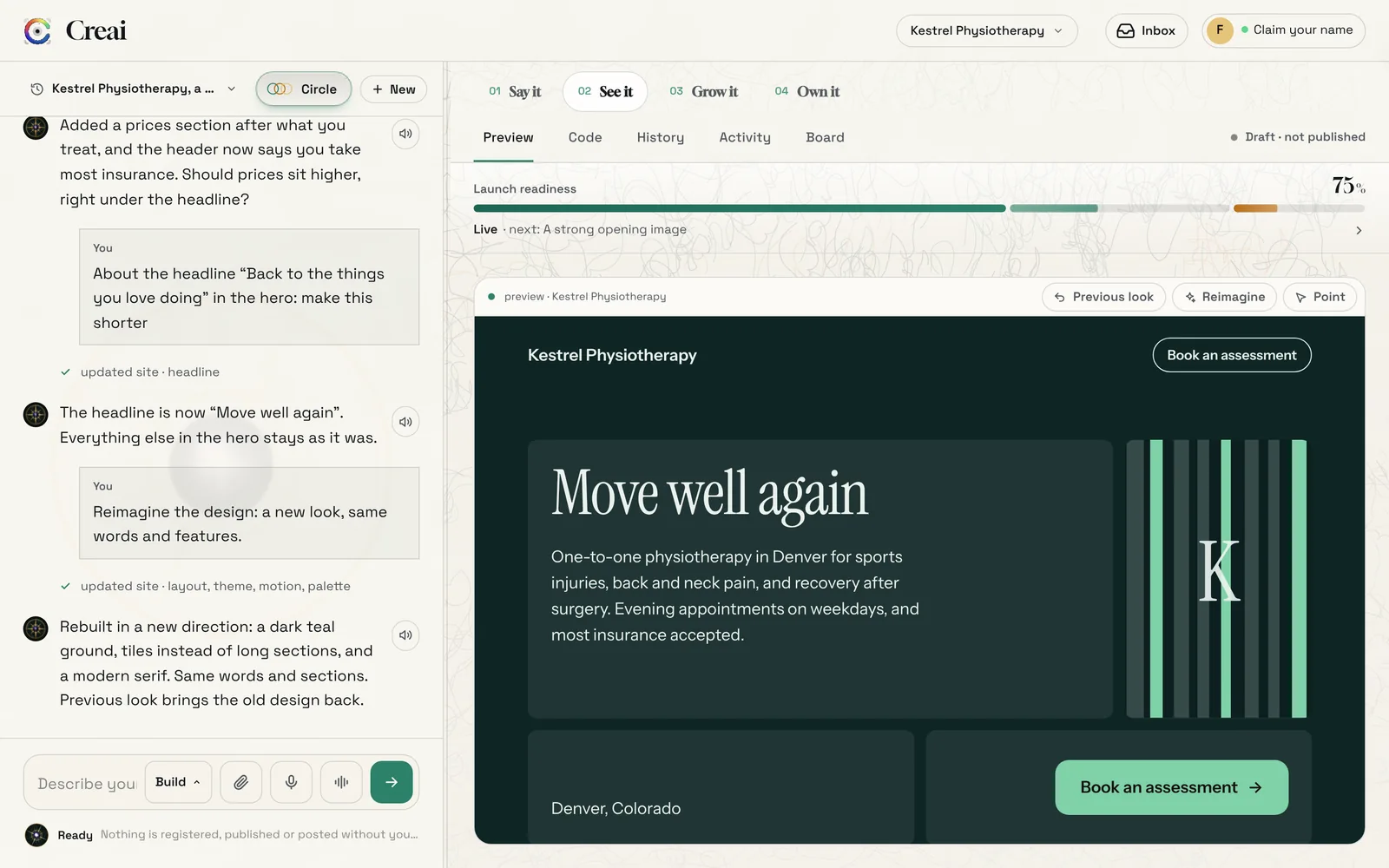
Press Reimagine to rebuild the design in a completely different direction, with the same words and the same features. Creai picks a direction you haven’t had recently. Previous look brings the old design back; press it again to swap between the two.
- 06
Put back an earlier version
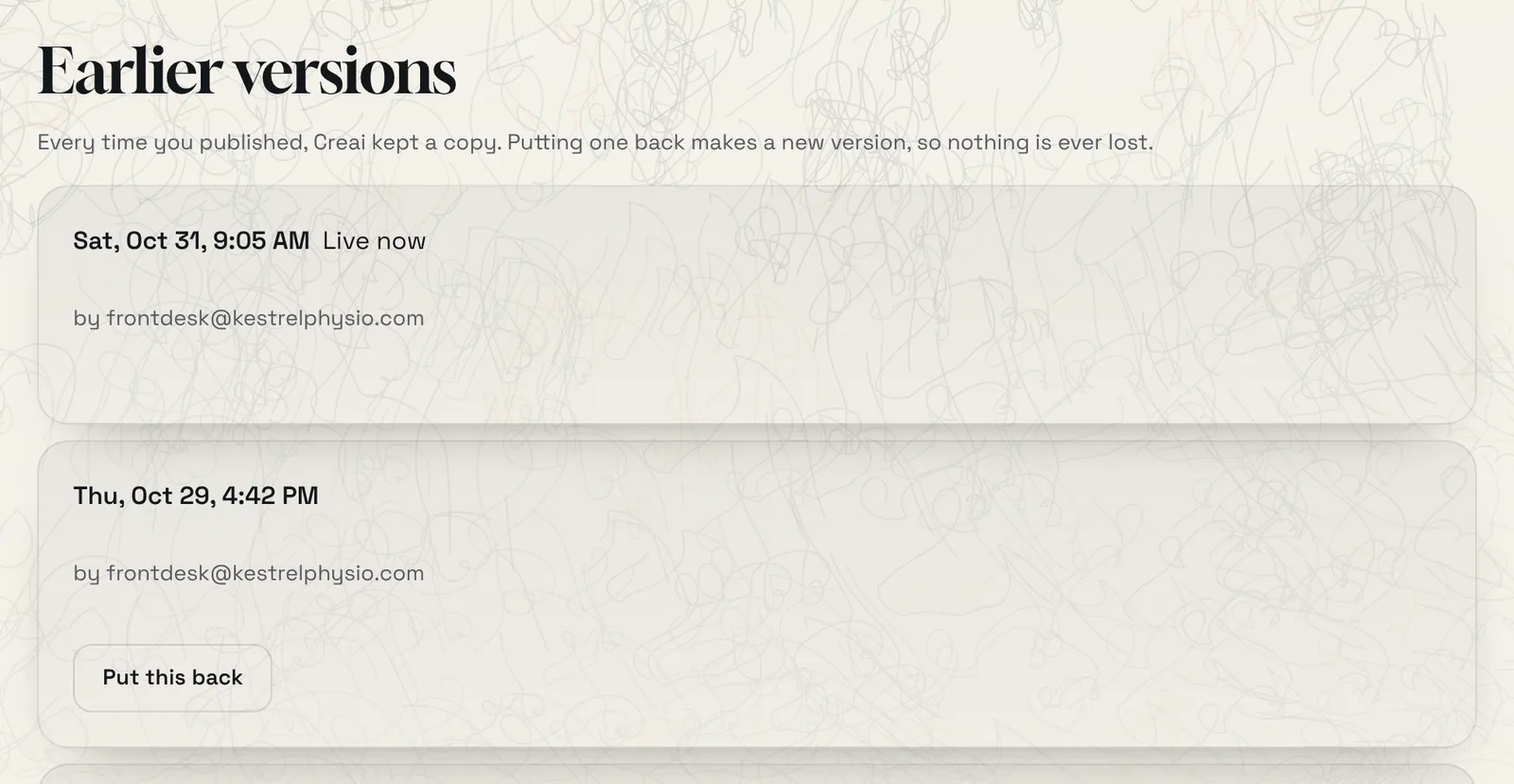
Every time you publish, Creai keeps a copy. Open See it, then History, to see each published version with when it went live and who published it. Put this back makes that version live again as a new version, so nothing is lost.
Good to know
- Changes show in the preview straight away but only reach your live site when you publish again.
- Creai doesn’t make up reviews, licences or prices. Give it your real ones, or it leaves a placeholder and tells you.
- Download your site from Projects: open the menu on its card and choose Export.
What it doesn’t do yet
- History keeps the versions you published. Edits you never published aren’t kept as separate versions.
- Reimagine and Previous look need an account, because they work on a saved creation.
Questions
Do I need to design anything?
No. Creai chooses the layout, type and colours to suit the business. Tell it what you like or don’t, or press Reimagine for a different direction.
Does a change go live straight away?
No. You see it in the preview first. It reaches your live site when you publish again.
Can I undo Reimagine?
Yes. Previous look brings back the design you had before, and you can swap back and forth.
Related guides
Updated 2026-10-31.